- Features
Take control of every order in one list
Find, review and act on orders from one practical workspace built for busy sellers.
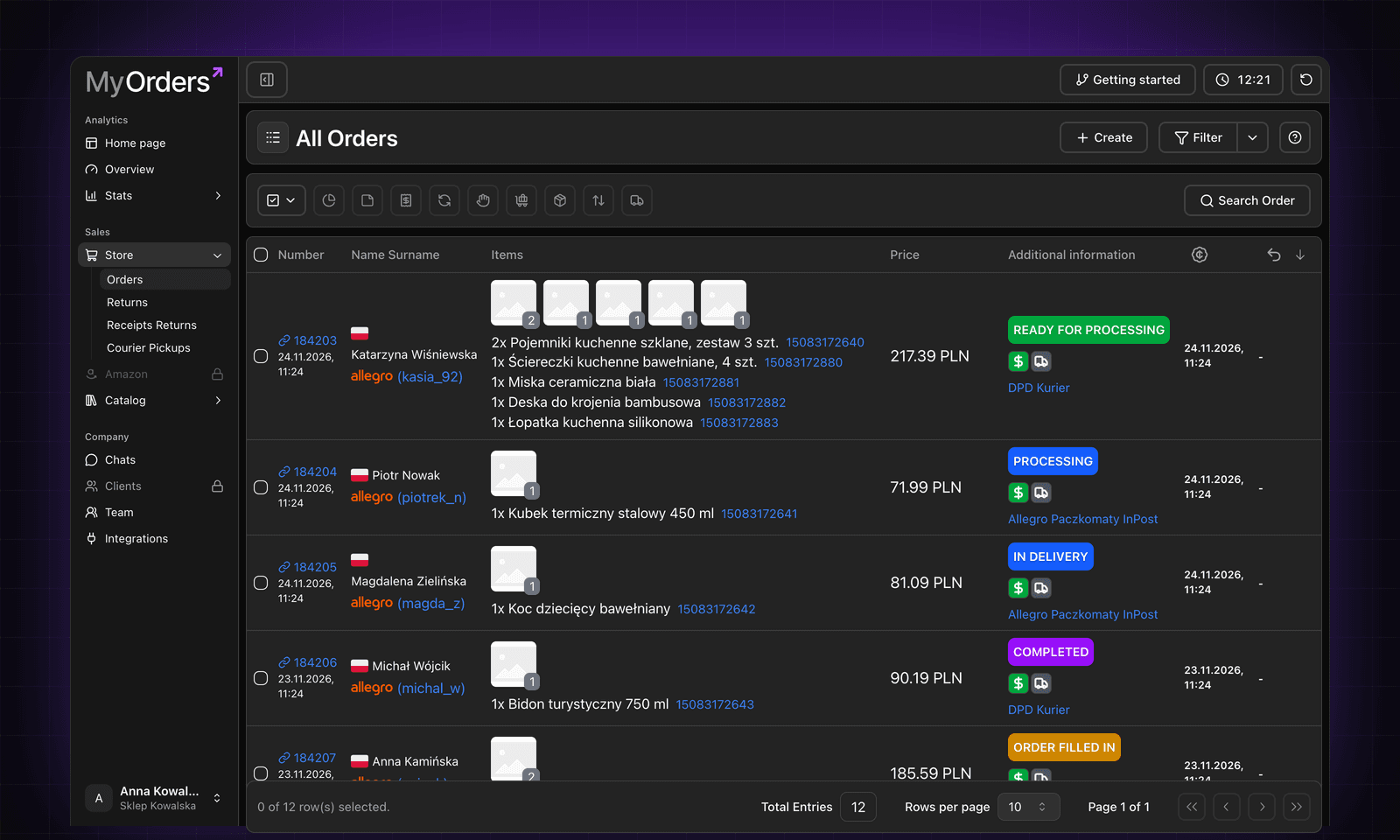
Monday starts with orders in several marketplace panels. Your team needs to know what to pack first, and a buyer is already asking about a parcel. MyOrders brings the queue together so you can find the right order and move work forward.
See the whole queue at a glance
The list brings together the information a seller needs to orient themselves: the order number and purchase date, buyer and marketplace, products and quantities, total, delivery method and status. Payment and other indicators add context. Open an order number when you need to investigate further, or use the buyer login to narrow your view around that buyer.
A mixed queue becomes easier to read when the buyer, item and delivery method sit alongside the status. A manager can scan the list for work in progress while a colleague preparing parcels can identify the products attached to each order. The display gives both people the same starting point without asking them to reconstruct the order from separate screens.
Spot the orders that need you now
As the list grows, filters help reduce it to a useful working set. The filter form includes search, statuses, marketplace, period and delivery, with additional criteria available in the expanded filters. Use them to focus on a particular stage or source, then return to the broader list when the task is done.
For example, a team can focus on orders in a particular status before starting a fulfilment session, or find a buyer when answering a question. Clear criteria are useful when colleagues hand work over: the list shows the orders matching the same request instead of relying on a remembered row position.
- Review the buyer, items and amount together.
- Narrow the queue by status, marketplace, date or delivery.
- Open a specific order when its full context is needed.
Move a batch forward together
Selection controls let you choose rows and use the available toolbar actions on a group. The orders workflow includes actions such as changing status, preparing invoices and starting picking. Use the toolbar to move the selected work forward together.
Grouping work can reduce repetitive navigation when several orders need the same next step. It also gives a team a straightforward way to define the batch they are handling. You still retain the option to open an individual order to check its details before acting.
Keep your team moving as sales grow
More sales should not make every routine check harder. A shared order list gives owners and managers a consistent place to monitor incoming work, while filters and selection help staff concentrate on a smaller set at a time. The value is not another report to maintain: it is the context available at the moment someone needs to find, check or process an order.
Start with the whole queue, narrow it to the work at hand, and move into an order only when the question calls for it. That simple rhythm helps the team spend less time looking for information and more time moving orders forward.
On a busy Monday, begin with the full queue and look for orders ready for processing. The buyer, products and delivery method are visible together, so the person organising the day can assign a clear set of work. Open the order when a question calls for more detail.
Imagine you handle 80 orders in a day. A focused view lets the team work through one group, then change the criteria for the next. That makes the queue easier to divide between packing, customer service and management.
When a buyer calls, search for the order and use the list to identify the right transaction. Its status and delivery method give your colleague a useful starting point before opening the full record. Everyone works from the same queue.
Give your team a clear queue and a practical way to act on it. With MyOrders, every order has a place in the day’s work, from the first review to the next step.